
DLB Precision Monitor · Free for Windows 11
See how hard your PC is working.
DLB Precision Monitor is a small hardware monitor that stays above your desktop windows. Put it on a second screen to see CPU and graphics card temperature, load and clock speed, plus memory in use, at a glance while you race, game or work.
It’s free to download and use, with nothing to sign up for, no ads and no tracking. Built and signed by DLB Precision in Austin, Arkansas.
Version 0.1.9 · 7.1 MB · Windows 11, 64-bit · Pilot release

How it works
Everything is one right-click away.
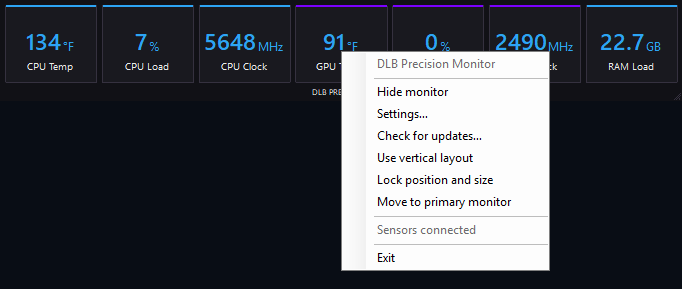
Seven readings, refreshed every second. Right-click the widget to hide it, open Settings, check for updates, switch to a vertical layout, lock it in place or move it back to your main screen.
Press Ctrl+Alt+F10, or a shortcut you choose in Settings, to show or hide it from anywhere. Showing it doesn’t take focus from the window you’re using. You can also double-click its tray icon.
Settings
Set it up once.
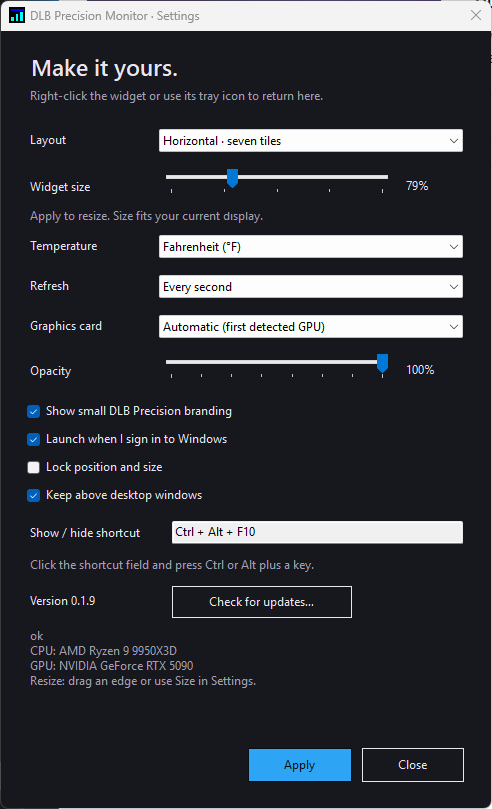
Choose a horizontal or vertical layout, a size from 50% to 150%, °F or °C, a refresh every 1 or 2 seconds, opacity and which graphics card to show. Decide whether it starts when you sign in and whether it stays above other desktop windows, and set your own show or hide shortcut.
Settings also shows the processor and graphics card the monitor is reading.
Updates
New versions install in place.
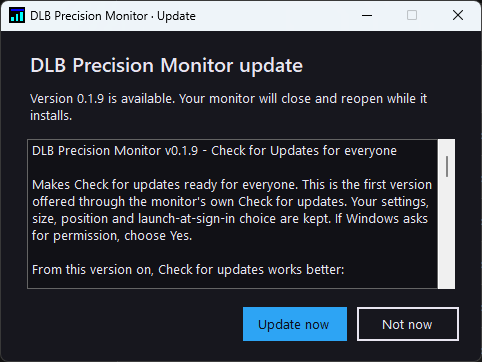
Right-click the widget and choose Check for updates. If there’s a new version, the monitor shows what’s new; choose Update now and it downloads the update and checks that it’s signed by DLB Precision, LLC before installing it. If Windows asks for permission, choose Yes. The monitor closes and reopens on the new version, with your settings, size and position kept.
It only goes online when you ask it to.
Under the hood
Where the readings come from.
Setup adds a small DLB sensor service that starts with Windows. It reads your processor and graphics card through LibreHardwareMonitor, an open-source sensor library. To read the processor’s temperature and clock speed, it uses PawnIO, a signed driver that setup adds if your PC doesn’t already have it. CPU load and memory use come straight from Windows.
CPU temperature is the processor’s package reading, CPU clock is the average of its cores, and graphics card readings are for the GPU core, so numbers can differ slightly from other monitoring tools.
The widget only displays those readings. It gets them from the service over a private, read-only connection on your PC, and neither one contains any network code, so your readings never leave your computer. Only the separate updater goes online, and only when you choose Check for updates. When the widget is hidden, it stops asking for readings.
Specs.
Readings
- CPU temperature, load and clock speed
- Graphics card temperature, load and clock speed
- Memory in use
- Refresh every second, or every 2 seconds
Display
- Horizontal or vertical, seven tiles
- 50%–150% size, or drag an edge to resize
- 30%–100% opacity, °F or °C
- Show or hide with Ctrl+Alt+F10
System
- Windows 11, 64-bit
- 7.1 MB setup, signed by DLB Precision, LLC
- Installs the monitor, a sensor service and, if needed, the PawnIO driver
- About 80 MB of memory and under 2% of one CPU core in our testing
Installing
Up and running in a few minutes.
-
Download
Choose Download for Windows 11, then open the setup file. If your browser says it isn’t commonly downloaded, choose Keep (or Keep anyway) in its downloads list first.
-
If Windows warns you
Windows may show “Windows protected your PC” for a new app. Choose More info, check that it says Publisher: DLB Precision, LLC, then choose Run anyway. If Windows names a virus or threat, or there’s no Run anyway button, stop and contact us.
-
Allow the install
When Windows asks for permission, check that it names DLB Precision, LLC, then choose Yes. If setup asks you to restart, restart and run the same setup file again.
-
Make it yours
Open DLB Precision Monitor from the last setup screen or the Start menu. The first time, it appears at the top left of your main screen; drag it where you want it, then right-click it for Settings.
A few things to know.
Does it cost anything?
No. There’s nothing to buy, now or later, and you don’t need to sign up to use it.
What do I need to run it?
A PC running 64-bit Windows 11 with an Intel or AMD processor. Setup won’t install on Windows 10 or on Windows 11 on Arm.
Will it work with my hardware?
It reads the Intel and AMD processors and the NVIDIA, AMD and Intel graphics cards that LibreHardwareMonitor supports. So far we’ve tested it on one PC, with an AMD Ryzen 9 9950X3D and an NVIDIA GeForce RTX 5090. If a reading shows a dash or looks wrong, let us know which processor and graphics card you have.
Does it collect or send any data?
No. Your readings stay on your PC. The monitor only goes online when you choose Check for updates, to look for a new version on GitHub.
Why does Windows say “Windows protected your PC”?
Windows shows this for new apps it hasn’t seen many times yet, even when they’re signed. Choose More info and check that the publisher is DLB Precision, LLC before choosing Run anyway. It usually shows up less often as more people install the monitor, but Windows decides when.
Will it show on top of my game?
It’s made to sit on a second screen while you play. It’s a normal desktop window, not an in-game overlay, and it never touches the game itself, so a full-screen game on the same screen can cover it.
What if I want to remove it?
Remove it like any other app, from Installed apps in Windows Settings. That takes out the monitor, its sensor service and its startup entry, and keeps your display settings in case you reinstall. The PawnIO driver stays, because other apps can use it; it has its own entry in Installed apps.
Where can I see the source code?
The source code, release notes and every version are on GitHub ↗.