
DLB Precision Desktop Clock · Free for Windows 11
The time, right on your desktop.
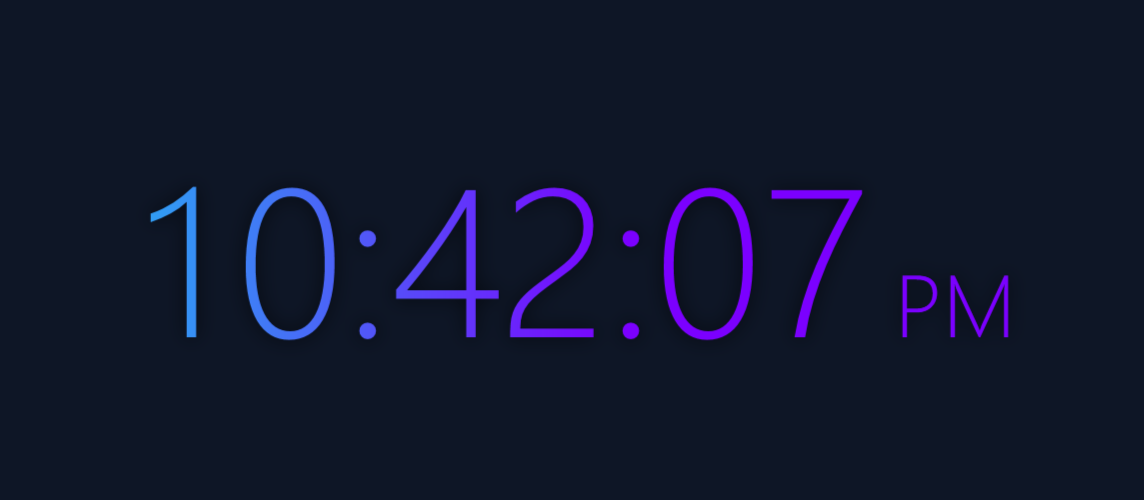
DLB Precision Desktop Clock is a digital clock with no window around it, just the time, sitting on top of your desktop. Drag it where you want it, make it as big or as small as you like and pick Rapid Blue, purple or DLB Precision colors.
It’s free to download and use, with nothing to install, nothing to sign up for, no ads and no tracking. Built and signed by DLB Precision in Austin, Arkansas.
Version 1.3.1 · 88 KB · Windows 11
How it works
Drag it, size it, right-click for the rest.
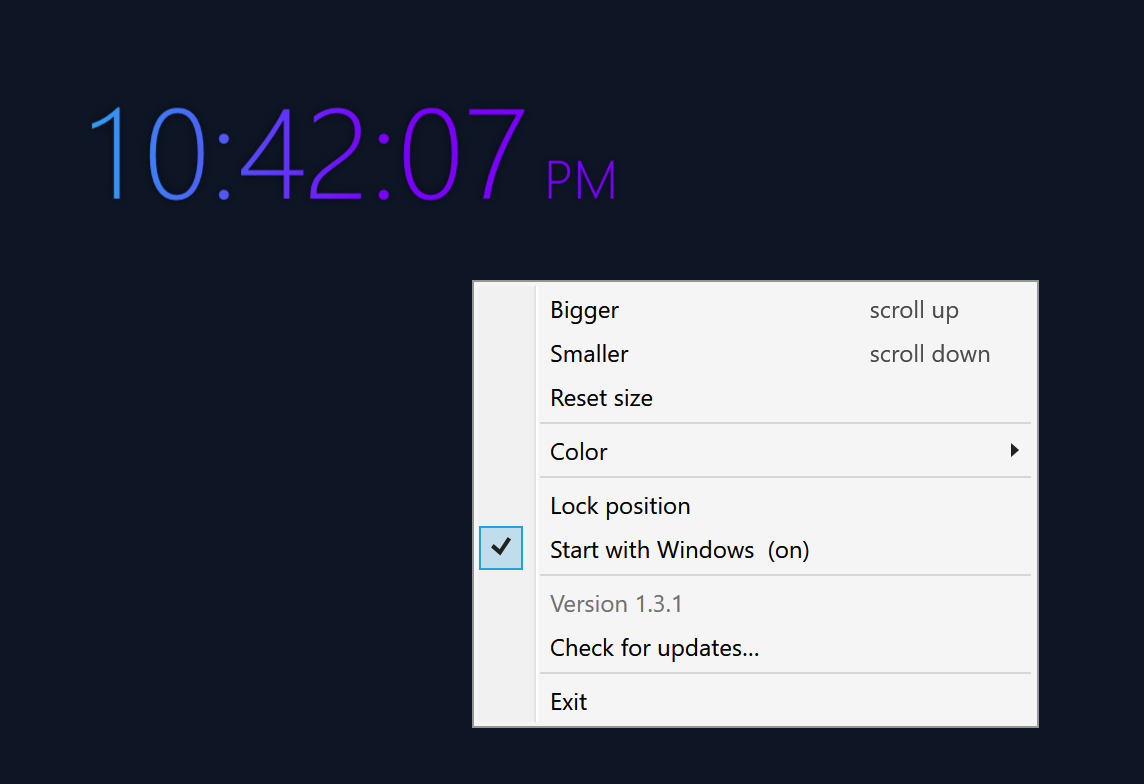
Drag the clock to move it. To resize it, scroll over it, drag any edge or corner, or right-click it and choose Bigger, Smaller or Reset size. It always keeps its shape.
Right-click it to change the color, lock it in place, turn Start with Windows on or off, check for updates or close it. It remembers its spot, size and color, and is back in the same place every time Windows starts.
Colors
Pick your color.
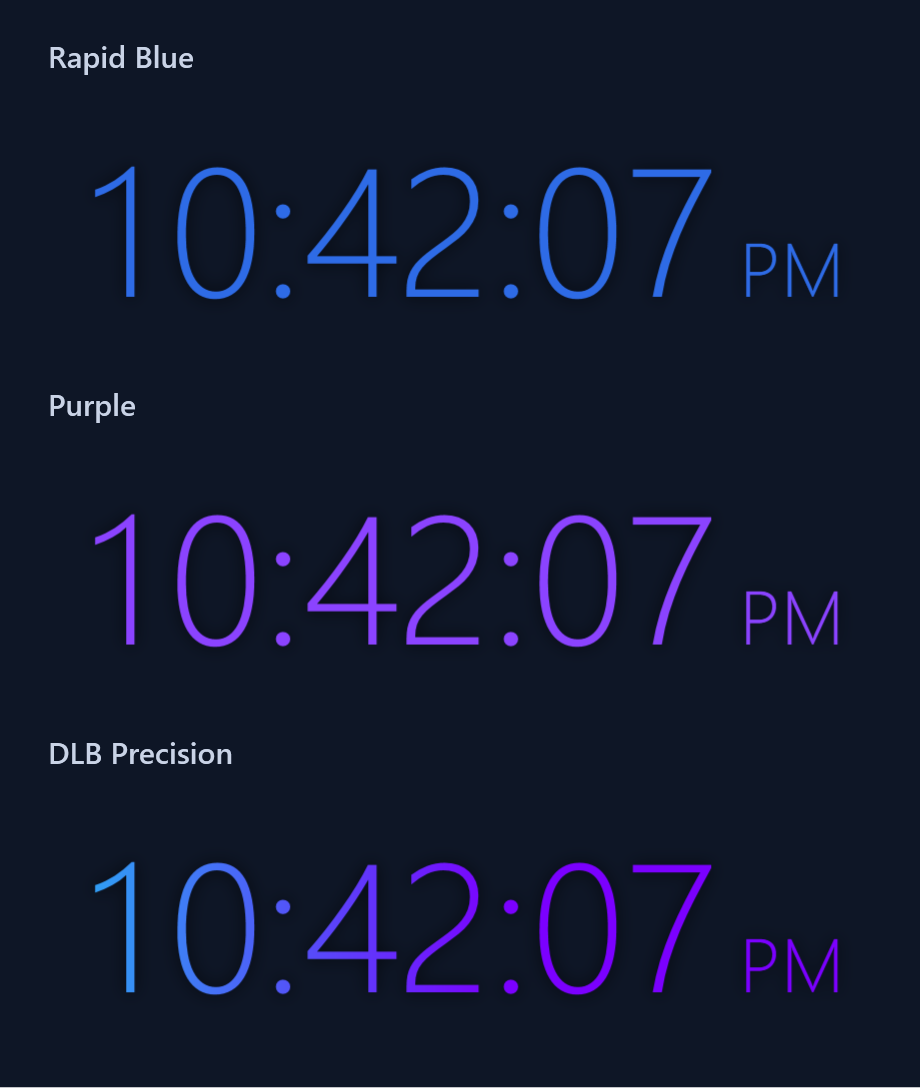
Right-click the clock and choose Color: Rapid Blue, the purple from the DLB Precision logo or the DLB Precision blue-to-violet gradient.
There’s no background behind the numbers, so your wallpaper shows through. A faint outline appears when your mouse is over the clock, so you can find its edges.
Updates
New versions install in place.
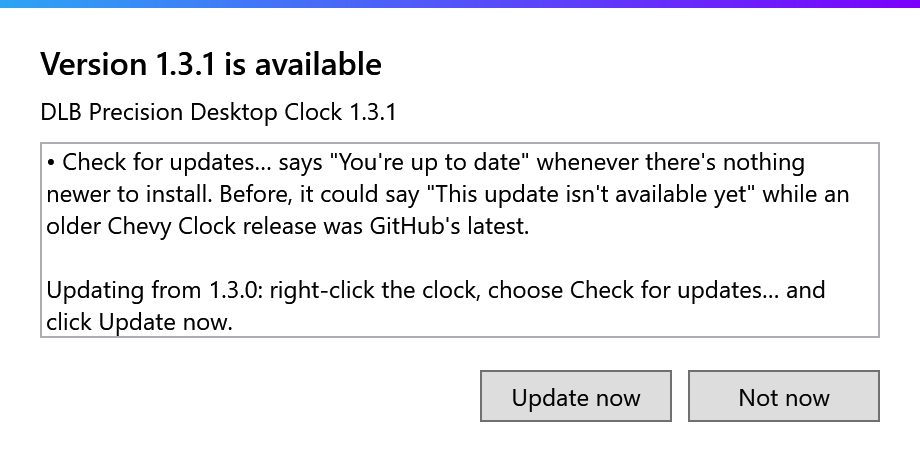
Right-click the clock and choose Check for updates. If there’s a new version, the clock shows what’s new; choose Update now and it downloads the update and checks that it’s signed by DLB Precision, LLC before installing it. The clock restarts on the new version in the same spot, with the same size and color. If the new version doesn’t start, the previous one is put back.
It only goes online when you ask it to.
Specs.
Display
- 12-hour time with seconds and AM/PM
- No background or window frame
- Rapid Blue, purple or DLB Precision colors
- Resize by scrolling over it, dragging an edge or using the menu
On your desktop
- Stays on top of your other windows
- Hidden from the taskbar and Alt+Tab
- Remembers its spot, size and color
- Starts with Windows, unless you turn that off
System
- Windows 11
- One small program, signed by DLB Precision, LLC
- No setup and no admin rights needed
- About 25 MB of memory and well under 1% of one CPU core in our testing
Getting started
Up and running in a minute.
-
Download
Choose Download for Windows 11. If your browser says the file isn’t commonly downloaded, choose Keep (or Keep anyway) in its downloads list.
-
Give it a home
Move DlbPrecision.DesktopClock.exe to a folder where it can stay, such as Documents, then double-click it. It runs from there every time Windows starts.
-
If Windows warns you
Windows may show “Windows protected your PC” for a new app. Choose More info, check that it says Publisher: DLB Precision, LLC, then choose Run anyway. If Windows names a virus or threat, or there’s no Run anyway button, stop and contact us.
-
Make it yours
The clock appears at the top right of your main screen, in Rapid Blue. Drag it where you want it, scroll over it to resize it and right-click it for colors and options.
A few things to know.
Does it cost anything?
No. There’s nothing to buy, now or later, and you don’t need to sign up to use it.
What do I need to run it?
A PC running Windows 11. The clock uses the .NET Framework that’s already part of Windows, so there’s nothing else to install.
Does it collect or send any data?
No. The clock only goes online when you choose Check for updates, to look for a new version on GitHub.
Why does Windows say “Windows protected your PC”?
Windows shows this for new apps it hasn’t seen many times yet, even when they’re signed. Choose More info and check that the publisher is DLB Precision, LLC before choosing Run anyway.
What if I move the file later?
Right-click the clock and choose Exit, move the file, then double-click it in its new folder. The clock points its Start with Windows entry at the new location.
What if I want to remove it?
Right-click the clock and turn off Start with Windows, right-click it again and choose Exit, then delete the file. Its settings are in %LOCALAPPDATA%\DLBPrecision\DesktopClock; delete that folder too if you want them gone.
Where can I see the source code?
The source code, release notes and every version are on GitHub ↗.